Cursor vs Claude Code (2026): Strengths, Limits, and Using Both
Coding agents across runtimes & repos
If you write code, we recommend Cursor. We like being able to type a change, take a Tab suggestion, and ask Agent to handle the related files without leaving the editor. See how we work with both tools.
If you don't write code, try changing one thing on a page in Cursor first. Open the preview, point to the part you want changed, and give Agent a short instruction. Choose Claude Code's desktop app if you want to build through a conversation without a code editor. Compare the setup and checking steps.
Cursor vs Claude Code: Key Differences and Strengths
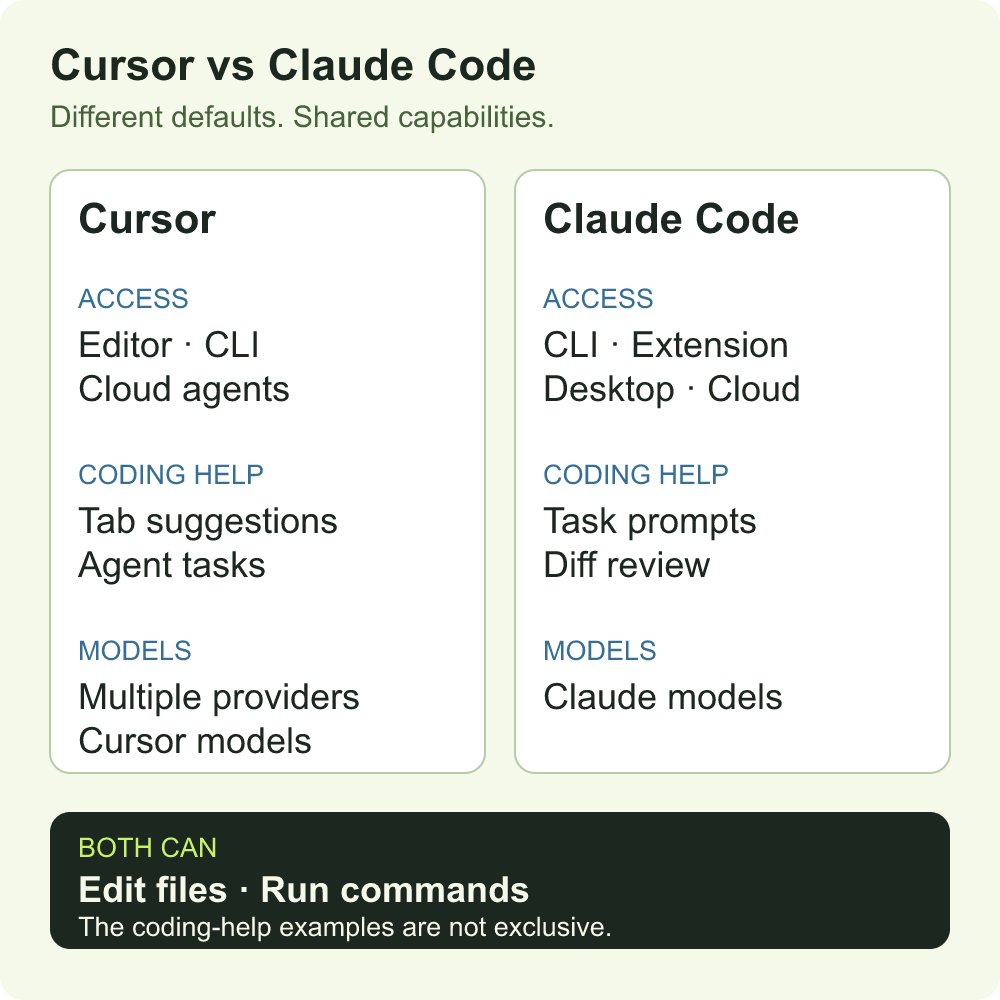
In Cursor, we keep the files and changed lines in view while we talk to Agent. Claude Code works in a terminal, a desktop app, or a supported editor, including Cursor.
The model and mode matter too. In the October test below, Cursor with Sonnet 5.5 passed every check; Composer 2.5 and Auto mode each missed five of 186 checks. Composer, for example, rejected the valid amount 1234,5 and mishandled CSV line breaks. We'd check the model and settings before blaming the tool.1 See the tasks and results.
Why use Claude Code if Cursor has Claude?
The same Claude model runs through different tools in Cursor and Claude Code. A Claude Code session has its own conversation, tools, and permissions, even when we open it inside Cursor. We pass along the relevant files and progress when we move work between them. Billing differs too: new Cursor plans charge separately for Claude usage, while Claude Pro, Max, and Ultra include Claude Code within the plan's usage limits.
If You Don't Write Code
What should your first project be?
If you already have a page or project, change one small thing you can check. If you're starting from nothing, we'd make a personal page with one working button.
How do you get started?
For your first page in Cursor:
- Install Cursor and sign in. On your computer, create an empty folder called
my-first-page, then open that folder in Cursor. You don't need an existing repository. - Open Agent with
Cmd+Ion Mac orCtrl+Ion Windows. Ask: “Create a personal page in index.html, with the CSS and JavaScript in that file. Add an About button that shows a short bio when clicked. Keep it local, with no login, database, or external services.” - When Agent finishes, find
index.htmlin that folder and open it in your web browser. You should see the page. If it doesn't open, tell Agent what happened and ask for the exact next step. - Click About: the bio should appear. Reload the page and try again. Then ask Agent to change the button's text, refresh the browser, and check that the new label appears and the button still works.
Once that works, you can use Design Mode in Cursor's built-in browser to point at an element you want changed. If you'd rather build through a conversation without a code editor, use the Claude desktop app's Code tab and select the same empty folder.
We'd get that preview working before trying to publish. The agent may still need you to create a hosting account, connect a service, or add an API key. Ask it to explain each step before you approve it.
Who checks the work?
Most people on one marketing team weren't technical. They used Cursor's cloud agents in the web app to change the website, blog, and landing pages. The agents opened GitHub pull requests, and engineers checked them before merging.
If you're working without an engineer, try every action in your first project before publishing. In April 2025, a builder using Cursor found that a cookie banner appeared on the page but its Decline action hadn't been implemented. Click the buttons and check what happens before calling the feature done.
How Do We Edit and Review Changes?
While editing the code
With Claude Code's extension, you can point to a file and inspect its changes beside the code. Try the extension before switching editors just to get an agent.
For UI tweaks and wording changes, we keep the file open and fix the details ourselves. For a larger change across files, we let Cursor Agent take the first pass, then read the diff.
Before the agent changes your files
On an unfamiliar project, check what the agent can change without asking. Cursor asks before running terminal commands, but changes project files without a separate approval by default. Claude Code's Manual mode asks before file edits and commands that need permission.
Which One Writes Better Code?
The two comparisons we found don't give us a quality reason to switch tools. In one small test with the same Claude model, both tools passed all 186 checks. In a separate bug-fix benchmark, both passed 20 of 27 tasks with the same model and effort setting.12
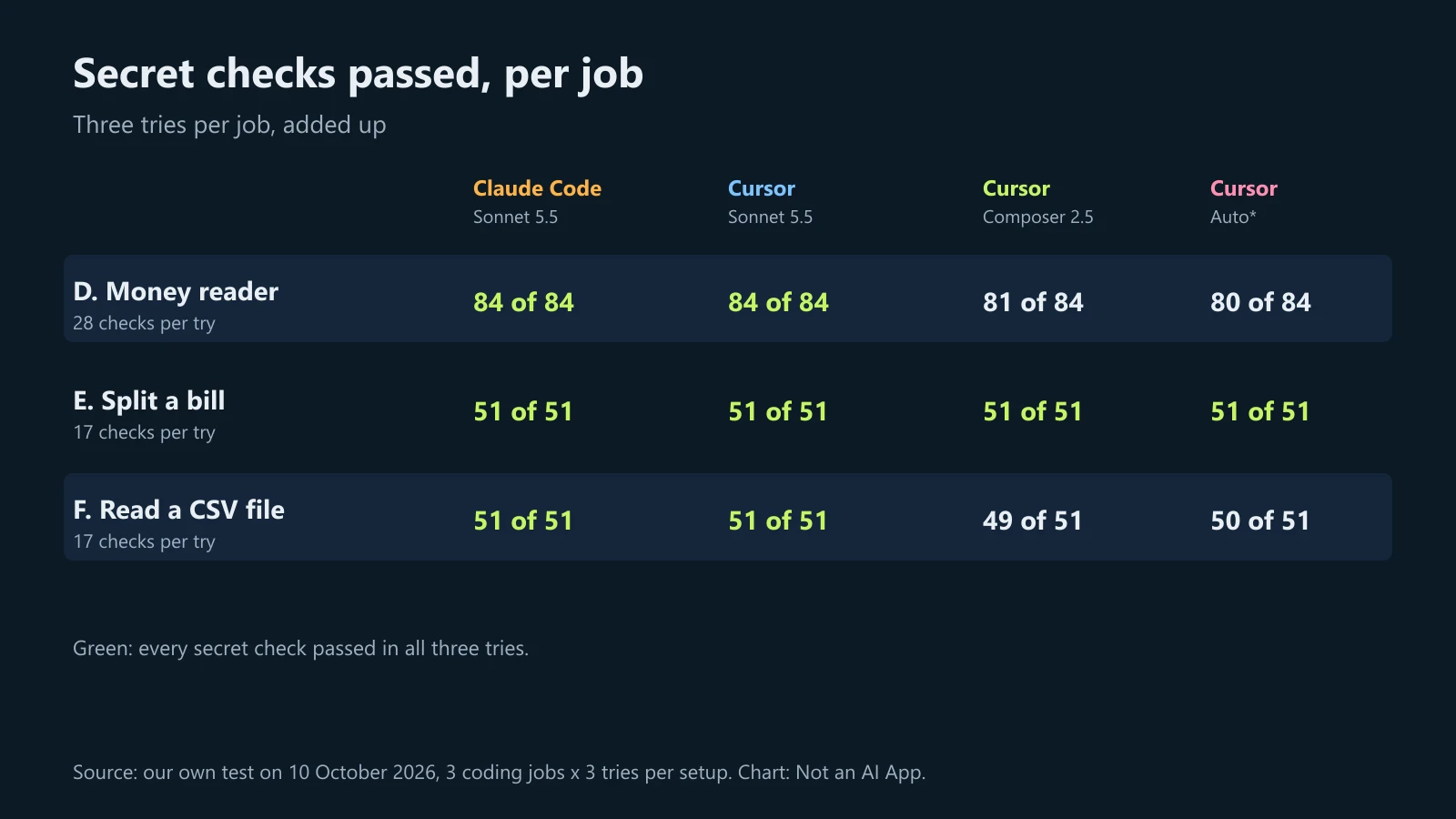
Three tasks, three tries per setup. Chart: Not an AI App, October 2026.
The May benchmark's equal totals hide different misses. On a username fix for Memos, a notes app, Claude Code passed while Cursor failed the check that numeric-only usernames should stay invalid. On a hot-reload task in Vite, a build tool, the result went the other way.2
We choose by the editing workflow and cost, then check the code on the project itself. For the money parser in the first test, we'd try different amount formats and check the exact cents. A passing score elsewhere doesn't do that job for us.
Cursor vs Claude Code Pricing and Usage Limits
The Cursor and Claude prices below are in US dollars per month, before tax. They are for individual web subscriptions.
What are you paying for?
If Claude is what you're paying for, start with Claude Pro: Cursor charges extra for it.
- Claude chat and Claude Code share your plan's usage limits. A busy day in chat can leave less for coding.
- Cursor's included usage pool is shared with the Grok apps. Requests in Grok chat draw from that same pool, leaving less for Cursor.
- Legacy Cursor Pro ($20/month) includes a monthly third-party model pool. Check your plan before using someone else's bill to estimate yours.
What happens when you hit a limit?
When Claude Code stops for a limit, check /usage for the reset time first. Pro and Max have five-hour and weekly limits. Verified Ultra accounts have no five-hour limit, but weekly limits still apply.
If the reset's only a few hours off, we just wait. On a Claude subscription, an open interactive session can wait out a reset and resume. Sometimes it will ask you to confirm before carrying on. If the deadline can't wait, compare an upgrade with paid usage credit.
Cursor resets its included usage pool each week. Once you've used it up, you can wait for the reset or pay from prepaid credit. Auto Top-up stays within the monthly spending cap. Estimate how much work is left before you raise that cap.
Using Claude Code and Cursor Together
If you don't write code, jump to our recommendation.
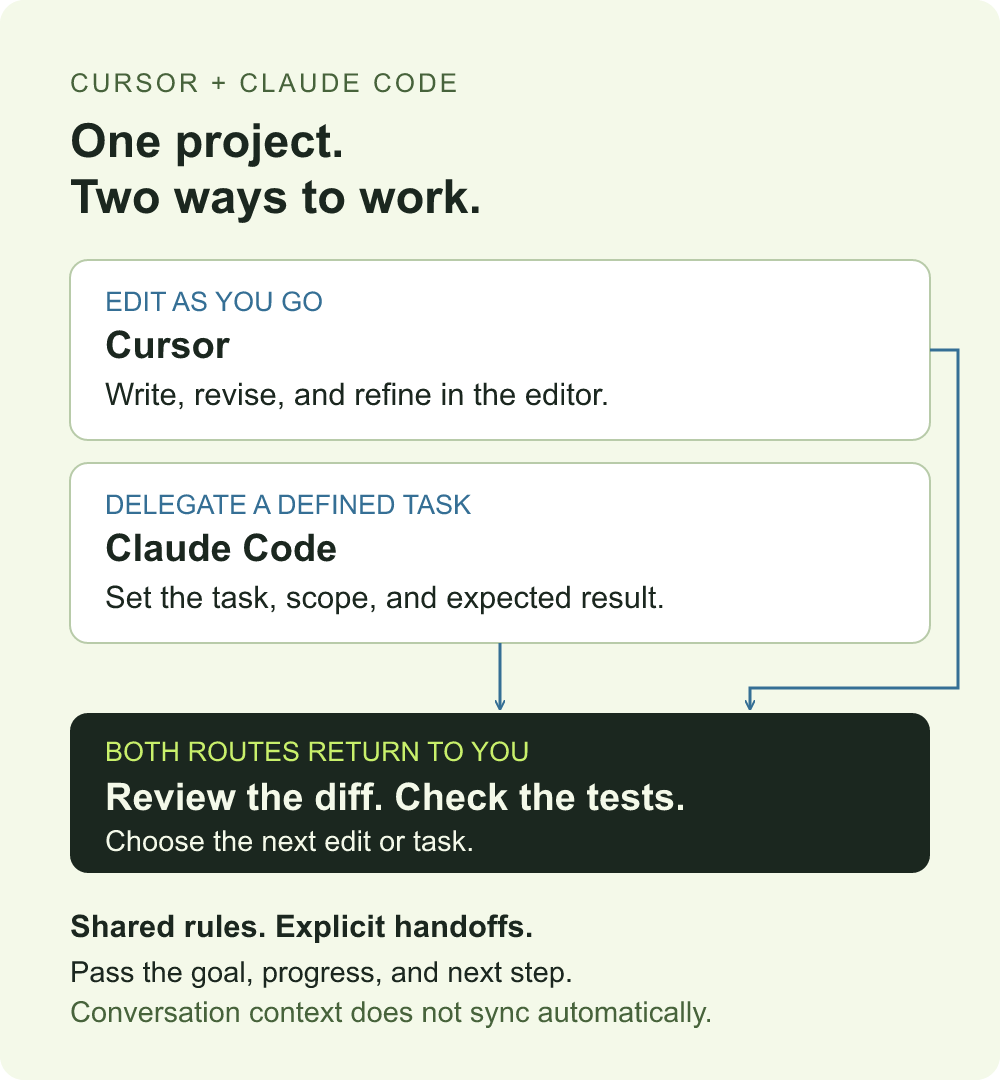
How we split the work
- We keep Cursor for edits we expect to revise by hand several times.
- We hand Claude Code a bug to investigate or a separate change to implement.
Review or commit the current edits before a handoff, so you can trace which tool changed what.
Both tools offer cloud agents for work that needs to continue after you close your laptop. In Cursor's new plans, cloud agents start at Premium. With Claude, cloud sessions are available on Pro, Max, and Ultra.
Use Claude Code in Cursor
- Open your project in Cursor. On the Claude Code extension page, choose "Install for Cursor", then sign in to Claude. You'll need Pro, Max, or Ultra, or a Console account with separate billing.
- If you prefer the CLI, install it and run
claudefrom your project folder in Cursor's terminal. - For shared instructions, use
AGENTS.md. Claude Code v2.1.277 or later can read it directly when there is noCLAUDE.mdorCLAUDE.local.mdin the project folder or above it. If it does not load, add@AGENTS.mdto aCLAUDE.mdbeside it. Use/contextto check which instructions loaded.
Claude Code's /init reads old Cursor rule files and adds the relevant instructions to its generated CLAUDE.md. If you change the Cursor rules later, you'll need to copy them over again. For a handoff, a short status note and the relevant session record give the next tool a starting point.
When we want Claude Code and Cursor in one conversation
Copying instructions from one tool to the other gets old fast. We built Alook to put the agents in one conversation. In this multi-agent collaboration workspace, Claude Code and Cursor connect as bot accounts that can reply to you and each other. The bots run on your computer, which needs to stay online.
During one blog review, a Cursor bot shared our research summary and a Claude Code bot checked the draft. The Claude Code bot flagged a line that said Cursor's included usage pool was shared with Grok but never explained what that meant. We added that Grok app requests draw from that pool too. The feedback and the fix stayed in one conversation.
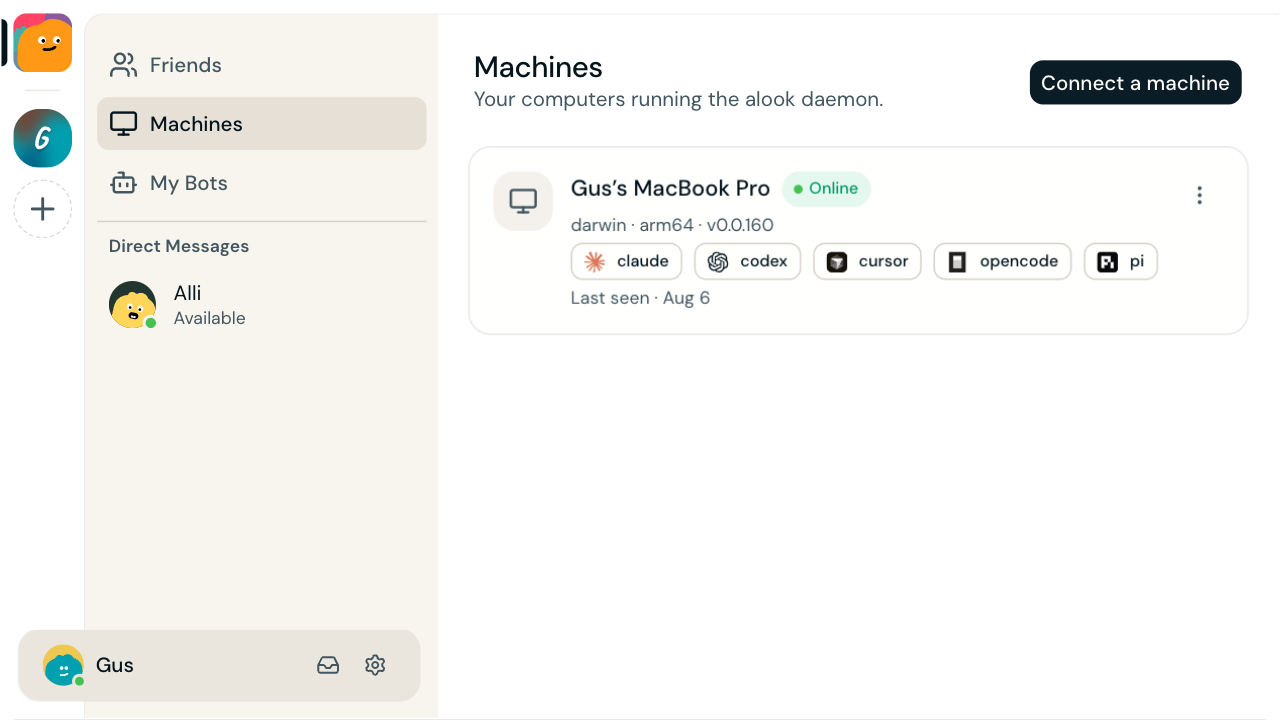
Connect your existing tools to Alook from your own computer.
Our Recommendation: Cursor, Claude Code, or Both
For a first AI coding tool, our pick is Cursor. The editor gives us room to adjust a change ourselves before asking for more. If you don't write code, a small page change gives you something visible to judge.
Try Claude Code first if you want to keep an editor you already know, or build through its desktop app without learning a code editor. For frequent Claude use, we'd start with Claude Pro and check its limits before upgrading.
We keep Cursor open for edits we want to revise by hand. Claude Code takes a separate task, and we review or commit before the handoff.
Try one small project before paying for both. Add the second tool when it solves a problem you can name.