Share a Claude Code Session With a Teammate
Coding agents across runtimes & repos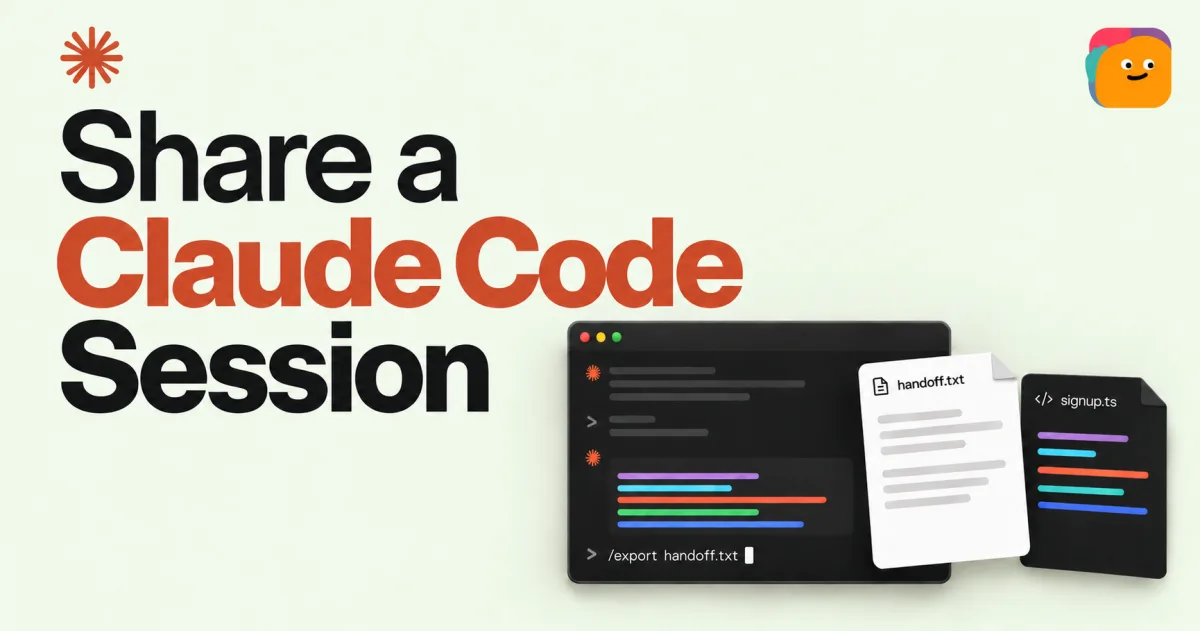
Illustrative interface. /export saves the conversation as text; the code file is shared separately.
To share a Claude Code session, use a session link for cloud work or /export for a conversation in the local CLI. If your teammate will continue the task, also provide the relevant files, current state, and next action. A conversation record alone does not give someone your working environment.
For example, you have been changing a signup flow with Claude Code, and a teammate asks why you added an email check. Send them the conversation that led to it. If they will take over the remaining work, include the code and explain what is unfinished.
Before setting up access or exporting files, ask whether they need to read the discussion or continue the work.
Choose what to share from Claude Code
For a decision review, the conversation may be enough. Someone preparing the next patch will need the working files too. Choose what to send based on the task.
If you only want to continue your own local session from your phone or another browser, use Claude Code Remote Control. Claude keeps running on the original machine, which must stay online with its process running. That is a different job from giving a teammate access.
Cross-session messaging lets Claude send text between sessions. Each message carries text; it does not include the sender's full conversation history or project files.
Share a Claude Code cloud session
For work in a Claude Code cloud session, follow the official session-sharing instructions. Check your account type; this section applies to cloud sessions, not local CLI or regular Claude Chat conversations.
- Open the cloud session you intend to share and review its contents.
- Set its visibility for the intended audience. Team and Enterprise accounts have Private and Team options; Pro and Max accounts have Private and Public options.
- Send the session link to your teammate. Ask them to open it from their own account and confirm they can access the material.
Team visibility applies to members of your Claude organization. Repository-access verification defaults to on for Team and Enterprise and off for Pro and Max. Public links are accessible to users logged into claude.ai; check settings before treating a link as recipient-only.
Recipients see the latest state when they open the link; their view does not update in real time. This section covers sharing that view. It does not explain how another account could take over the running session.
Export a Claude Code conversation from the CLI
In the local CLI, /export creates a plain-text conversation record you can send to a teammate. The official command reference documents both direct file export and the interactive copy/save option.
Inside the conversation you want to share, enter a filename:
/export signup-review.txtWith a filename, Claude Code writes the export directly to that file. If you enter /export alone, it opens a dialog to copy the conversation to your clipboard or save it to a file.
Read the exported file to make sure it includes the discussion your teammate needs. Attach it in your team's usual channel with a specific request: "Please read the discussion about the email check and tell me whether the product requirement matches it."
If your teammate needs to review a document or diff mentioned in the transcript, send that artifact as well. Claude Code also supports Artifacts for sharing generated pages and other outputs, subject to availability and sharing settings. Sharing an output is distinct from exporting the conversation that produced it.
Hand off Claude Code work to a teammate
Give your teammate the correct files and a short note about the current task state. They can use the conversation to check the reasoning behind earlier changes.
For the signup example, a handoff note could look like this:
Task: Finish the signup email check.
Code: Open the linked draft PR and confirm its current revision.
Done: The form displays the email-check result.
Open: Decide what happens when the check service times out.
Checks: See the attached test log; confirm it matches the revision.
Next: Review the timeout behavior before changing the UI.
Decision needed: Product owner approves the user-facing behavior.
Replace each line of this example with the actual state of your work. These notes do not transfer a session. If you have not run any checks, say so.
Your teammate will need repository or file access and their own configured tools. Ask them to inspect the working state before making changes. Include the revision with any test results so they can tell what you checked.
Claude Code's session management documentation covers resuming saved conversations and creating branches. Those capabilities do not, by themselves, establish that another account can take over your original session. For work moving between Claude Code and Codex, see the separate guide to working with both coding agents.
Let teammates work with your Claude Code bot in Alook
After reading the signup discussion, your teammate may ask what changed after the review or which requirement still needs a decision. Passing each question back to the bot adds another round of messages.
In Alook, teammates can ask a connected bot directly in a shared conversation. Before starting, have an online Claude Code bot and the relevant task record ready to share. An old CLI conversation does not automatically come with the bot.
If you need to connect a bot first, start from Home: open Machines in the left sidebar to connect your computer, then My Bots to create a bot using Claude Code. Keep its computer online. If you already have the right bot, reuse it.
- Open your project server. Click the person-plus Invite to server button beside its name and use Copy to get an invite link. Invite your teammate and send your bot the link with a request to join. Choose a channel both can access; for a private channel, add them through Add members.
- Post the current handoff note and necessary files in that channel. Include the revision and unresolved question, rather than expecting the bot to recover an unrelated private session.
- Have your teammate address the bot with a specific question and ask it to check the shared record.
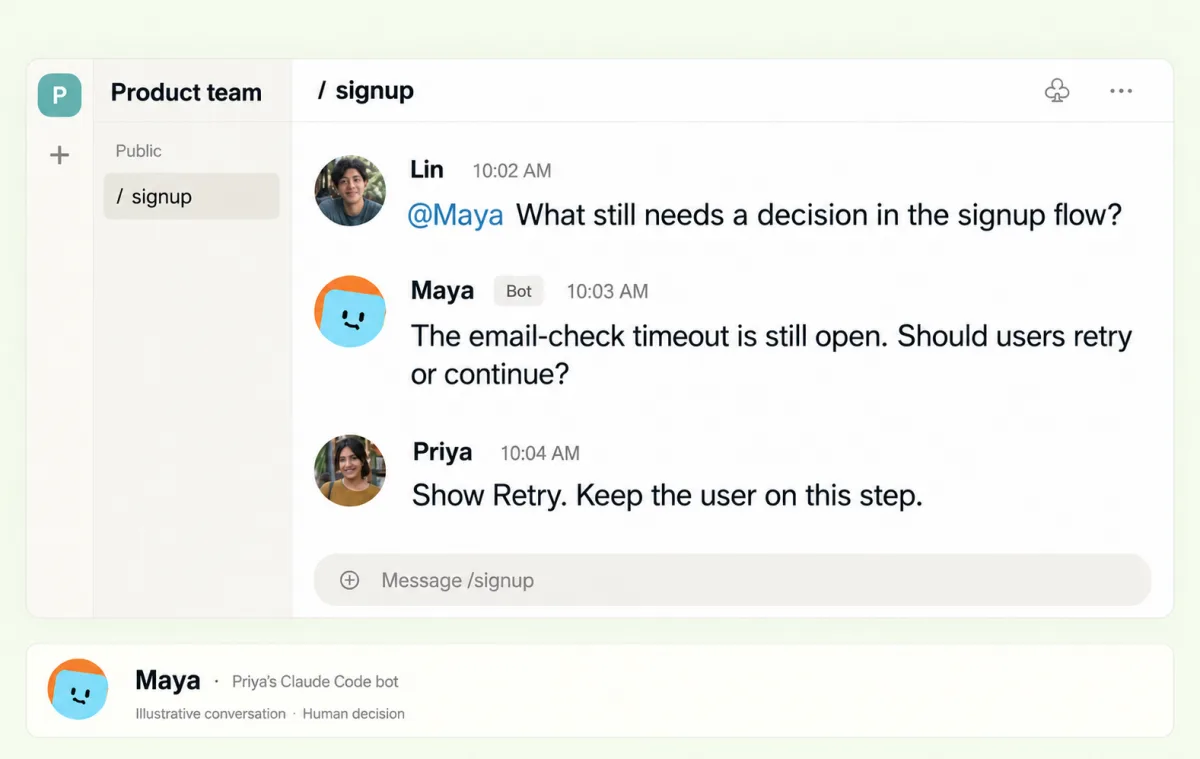
Illustrative conversation. Maya is Priya's Claude Code bot; Priya makes the product decision.
For the signup example, that question could be:
"Maya, what still needs a decision before we finish the signup flow?"
This is an illustrative exchange. If the bot can access the record of the timeout discussion and related work, it can point your teammate to them. The product owner still decides the behavior.
The bot participates under its own identity in Alook. Its configured access and the information you share determine what it can use. Your private Claude Code session stays separate: Alook does not turn it into a shared terminal, import its entire history automatically, or grant teammates access to local files and tools.
In the team's account of building Alook, Gus asked his coworker's development bot about cache optimizations, then took more specific questions back to his coworker. The bot supplied background; the people still had to discuss the tradeoffs. For a one-time transcript review, the link or export above may be all you need.
Before sharing: access, files, and next steps
Take a moment to check the handoff before sending it:
- Check the session, file, or code revision against the task you are discussing.
- Confirm the intended recipient can open it and that its visibility matches your intent.
- Include the artifacts needed to review or continue the work.
- State the next action and who owns it.
Anthropic warns that shared cloud sessions can contain code and credentials from private repositories. Check the conversation's contents as well as its link settings.
A useful message might be: "Here is the signup discussion and the current draft PR. Please review the timeout question; leave implementation paused until we agree on the behavior." That tells your teammate where to find the work and asks for a review before implementation continues.
Frequently asked questions
Does /export include my project files?
/export saves the conversation as plain text. Share project files, diffs or a repository link separately when your teammate needs them.
Who can open a shared Claude Code session?
Team visibility is for members of your Claude organization. Public links are accessible to users logged into claude.ai. Access also depends on the visibility and repository-verification settings described above.
Is sharing a session the same as handing over the work?
A session link or transcript lets your teammate read the discussion. To continue the work, they also need the current files, access to the relevant environment, and a clear next action.